Admin User Interface
Schema
The Schema area is the visual editor for designing your data model. Types appear as boxes on a canvas, and relationships appear as connecting lines between them. You can drag types to arrange them, click to edit their properties, and draw connections between types to create relationships.
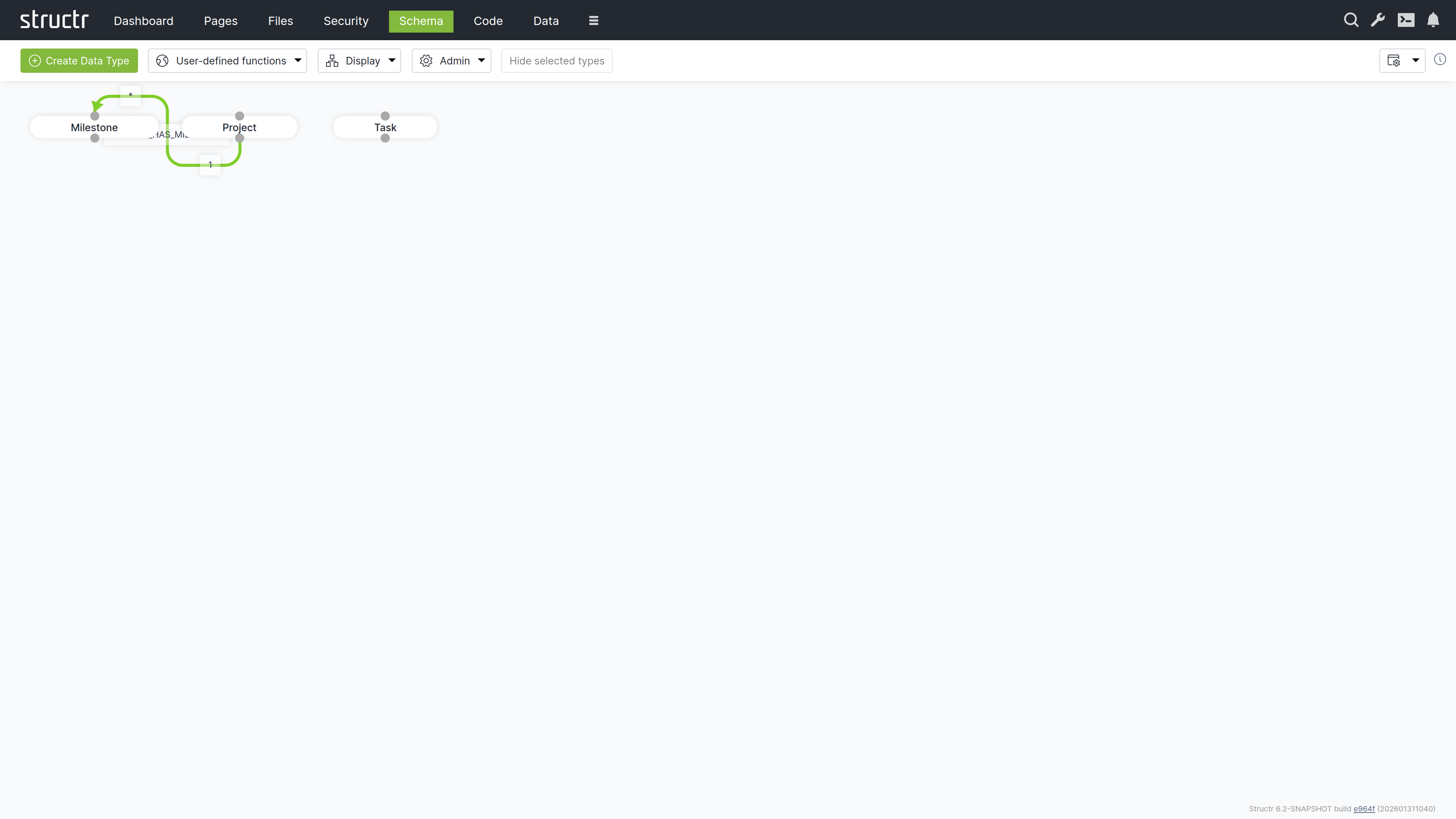
The Canvas
The main area displays your data model as a graph. Each type appears as a box showing the type name. Hover over a type to reveal the pencil icon (edit) and delete icon. Connection points at the top and bottom of each box let you create relationships by dragging from one type to another – drag from the source type’s connector to the target type’s connector, and Structr opens the relationship configuration dialog.
Navigating Large Schemas
Use the mouse wheel to zoom in and out. Click and drag on empty canvas space to pan. For applications with many types, these controls help you focus on the part of the schema relevant to your current task.
Relationship Colors
Relationship lines are color-coded:
- Green – Normal relationships
- Orange – Relationships configured for permission propagation (see User Management for details on graph-based permission resolution)
Schema and Data Are Loosely Coupled
The schema and your data are loosely coupled. If you delete a type from the schema, the type definition and its relationships are removed, but the data objects of that type remain in the database. You can recreate the type later and the data becomes accessible again. This flexibility is useful during development but means you need to manage data cleanup separately from schema changes.
Editing Types and Relationships
Click the pencil icon on a type box to open the Edit Type dialog. Relationships are edited via the pencil icon on the relationship label in the middle of the line, which is only shown while “Relationship labels” is enabled in the Display menu. Both dialogs provide access to all configuration options – properties, methods, views, and more. For details on these options, see the Data Model chapter.
Secondary Menu
The menu bar above the canvas provides tools for managing your schema.
Create Data Type
The green button opens the Create Data Type dialog where you enter a name and select traits for the new type. After creation, the Edit Type dialog opens automatically so you can add properties and configure the type further.
User Defined Functions
Opens a table listing all global schema methods. This is a legacy location – the same methods are more conveniently accessible in the Code area under Global Methods.
Display Menu
Controls the visual appearance of the schema editor.
Type Visibility
Opens a dialog where you show or hide types on the canvas. Types are grouped into categories: Custom Types, User/Group Types, File Types, HTML Types, Flow Types, Process Types, Schema Types, and Other Types. Each type has a checkbox to toggle its visibility.
This is essential for focusing on specific parts of the schema. In a typical application, you work primarily with your custom types and rarely need to see the built-in HTML, Flow, or Process types.
Display Options
Two toggles control what information appears on the canvas:
- Relationship labels – Shows or hides the relationship names on connecting lines, including the edit and delete icons for the relationship
- Trait Inheritance arrows – Shows or hides arrows indicating trait inheritance
Edge Style
Controls how relationship lines are drawn: Flowchart, Bezier, State Machine, or Straight. Choose whatever makes your schema most readable – Flowchart works well for hierarchical schemas, while Straight lines are cleaner for simpler models.
Layouts
Schema layouts save the visual arrangement of types on the canvas. If you’ve organized a complex schema to make it readable, you can save that layout and restore it later. The Saved Layouts section of the Display menu has a dropdown of the stored layouts with three buttons: Load restores the selected layout, Save overwrites it with the current arrangement, and Delete removes it. To store the current arrangement under a new name, enter the name in the input below and click Create.
Reset Layout / Reset Zoom
Reset Layout returns all types to their default positions. Reset Zoom returns to the default zoom level.
Apply Automatic Layout
An experimental feature that arranges types on the canvas automatically. Results vary depending on schema complexity.
Hide Selected Types
Hides all currently selected types from the canvas. Select types by clicking them (hold Ctrl to select several), then click the button. The types remain in the schema and can be shown again via Type Visibility.
Admin Menu
The Admin menu provides database maintenance functions.
Indexing – Nodes
A type selector lets you pick a single node type or all node types. The buttons next to it act on the selection:
- Rebuild node index – Recreates indexes for the selected node types. Run this after adding indexed properties to a type that already has data.
- Add UUIDs – Adds UUIDs to nodes that lack one. Use this when importing data from an external Neo4j database.
- Apply Labels – Creates Neo4j labels based on the type property. Use this when importing data that has type values but is missing the corresponding labels.
Indexing – Relationships
A second type selector picks a single relationship type or all relationship types:
- Rebuild relationship index – Recreates indexes for the selected relationship types.
- Add UUIDs – Adds UUIDs to relationships imported from an external database.
Rebuild all indexes
Triggers a complete rebuild of all indexes for both nodes and relationships. Use this after importing data or when you suspect index inconsistencies.
Maintenance
- Flush Caches – Clears internal caches. Rarely needed in current versions.
- Clear Schema – Removes all custom types and relationships from the schema. Use with extreme caution – this erases your entire data model definition (though not the data itself).
Settings
The gear icon opens configuration options for the Schema area. These are the same settings available in the Dashboard under UI Settings, filtered to show only schema-relevant options.